Showing posts with label Gmail. Show all posts

Get An Email Alert When Google Indexed Your Recent Blog Post [Google Alerts]

Google continuously working to serve you something better for your every need. Recently, the world's No. 1 search engine Google launched the most versatile online tool: Google Alerts - to send custom alerts, and monitor the interesting content you preferred on the web. You just need to create an alert for any of your desired content and you will get an email notification from Google about any recent changes or new results appeared for your search term. Get Notifications When Google Index Your Blog Posts - If you are searching about how to know if your new blog posts indexed on Google? then you are on right page. Google helps to keep you updated regularly around the selective term you want to get updated with. It's important to know the time of indexation of your recent blog posts and Google Alert is the best option for that. But how to use this Google Alerts tool for getting website alerts? How Google Alerts help bloggers to know more about competitors? how to setup & use Google Alerts to drive traffic? Learn more about this modern Google Alerts service by the Google and get alerted on your inbox when Google index your recently published article.
Get Email Alert When Google Indexed Your Recent Blog Post
Recently I have posted, how to get Google Search API for a website which uses Ajax platform. And today I am going to tell you one of the best blogging tips how to use Google Alert to get informed as soon as your website gets indexed by search engine. The site platform of Google Alerts API program is Java based so with lightweight library function, it shows quick results right on the screen directly as you type. It's a quick control, quick functioning tool causes less time to setup. So I recommend you to use this tool frequently as you use the reminder.

You also need to check: How to Setup CloudFlare Free CDN Service in WordPres or Blogger to Speed Up Site Loading

How to setup Google Alerts Tool to get Email Alert When Google Indexed Your Recent Blog Post

1. Open Google Alerts website: https://www.google.com/alerts

2. You will see the option for �Monitor the web for interesting new content�. Put following code for your website: site:yourdomain.com

3. You will see 'Show Options' near to the 'CREATE ALERT' button. Open it and change all as shown below; [You can change it as per your requirements]
  • How often: As-it-happens
  • Sources: Automatic
  • Language: English
  • Region: Any Region
  • How many: All results
  • Deliver to: here you need to add your email ID where you need to be notified.


4. Now click on 'CREAT ALERT'

5. Done!

You have successfully created an alert for your site. As soon as your site is get indexed by Google, you will receive the notification via email.

Bottom Line

For the case of bloggers, Google Alerts is the best way to keep an eye on your competitors and their recent traffic strategies. This will help you to drive more traffic by utilizing the new techniques that currently running out in the market. Moreover, if you have published on something innovative on a particular topic then you will keep updated yourself around that topic by Google Alerts when related stuff gets indexed. In addition, Google alerts will definitely work best to get alerts for job seekers, news alerts, stock alerts, calendar alerts or price alerts.

So start using Google Alerts and let me know what things you get amazed with your alerts. I hope you liked this post, if you did then don�t forget to share it on Facebook, Twitter, and Google+.

How to Automatically Backup Your Blogger Blog FREE

Learn how to backup website by simple methods. The Backup process is one of the most significant parts of every blogger, even if there are few posts published. Lots of sites are providing this back up information with their advanced remote backup service and charging a small fee; but what if the blogger provides a blogging platform freely then why to choose those providers when there is best blogging tips are available to automatic backup blogger blog FREE. This is exceptionally valid if your blog makes money. Every blogger must have some sort of backup system in place in case emergency strikes. I usually backup complete blog in a manual way so this page will be really helpful for all of you. It is one of the most important things you should do is to regularly backup the content, every comment, every link & blog posts of blogger blog or ant website. There are Automatic WordPress Backup tools available to backup WordPress websites. But here are simple ways to keep your blogger blog safe and backed up and extremely easy to use and allows you to schedule automatic backups your blog. Learn how to make automatic backup of blogger blog by simple methods.
How to Automatically Backup Your Blogger Blog FREE
Last time we have seen How to Add Nofollow to Comments To Prevent Blogger From Panda Effect & Spam. Today I am going to tell you about automatic website backup - how to back up your blogger blog site consistently & automatically without any software or any remote backup services. Since you & you alone completely responsible for keeping a recent backup of your blog posts or database at all times, it is the best choice for backing up your blog posts without plugins on PC or another server you like.

Also read; Make your Blogger blog faster with CDN

Make Free Blog Backup Automatically

It is obviously a very simple technique, but you must follow the procedure properly as it shown below;

Requirements:
  1. You must have a Gmail account
  2. Also a FeedBurner account

Once you get these accounts then jump to following steps;

STEP-1: by Feedburner account

  1. Login to Feedburner account.
  2. Go to >> Publicize tab.
  3. And next to Email Subscriptions option shown on the left side menu; a new code will be generated for your blog.
  4. Now according to your blog site (like blogger, wordpress), install that widget.
  5. Now put your email address into that form in following format:
    Your-Gmail-ID+LABEL@gmail.com
    (Don't forget to put PLUS '+' sign in between)
    Example: If you have email address like : abcd@gmail.com,
    then you need to use
    abcd+backupbooster@gmail.com
    (Here backupbooster is a label that will be create in next step.
    For now, just put that created email address into it.)

Now proceed to following steps;

STEP-2: by Gmail account

  1. Now go to your Gmail account.
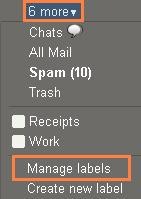
  2. Click on more shown on the left side panel.
    How to Make Free Blog Backup Automatically - ProBlogBooster
  3. Click on Manage labels, there you will see all your labels.
  4. Now, you need to create a new label; so just put a new label backupbooster and click on Create.
  5. After this, click on Filters and Create new filter.
    Put above created email id (abcd+backupbooster@gmail.com) into 'To' text box.
    Click Next Step.
  6. Tick the options Skip the inbox and Apply the label. Select the backupbooster; label from drop down list, then click on Create filter.
  7. Now you have done all. Husshh..!

There is no need to any backing-up plugin to backup your blog. It is really an easiest method ever. Let me know how you do it... if there is any problem, comment here via comment-section below...

WARNING - Bottom Line

Don�t ignore this article; follow now and implement it and you will appriciate this article when it retains your blog on a terrible day!!!

Remove Large Size Emails to Clear Gmail Space & Increase Storage

Have you checked your Gmail usage, you will wonder if you found it's size in Gigabytes[GB]. You Google account use shared storage with Gmail email service, Blogger or Google+ photos, Google Drive files. All of yours Google Gmail account gets 15GB storage drive space for everyone including Google photos storage limit. And once you reached that limit of 15GB, your Gmail storage quota exceeded and then you can't send or receive emails because you're out of storage space. So the question is, how to find large emails in bulk & track down big attachments? how to free up space in Gmail account? how to increase Gmail storage space free? Then you want to make a room for new emails or you need to delete large attachments to save storage space. Learn how to search these large sized emails and remove them for making more space in Gmail storage drive. Also, learn how to free up storage space on your Google account and tricks to clear Google drive space to increase storage.
Remove Large Size Emails from Gmail for More Space
In last article we have seen how to access Facebook without Internet on any mobile. But today we are going to learn some Gmail related tutorial. This tutorial is also that much important for those who have always on Gmail and have too much of mails consisted in their mailbox or who don't have that much enough space for new incoming mails. Learn how to get rid of this issue & how to use gmail storage carefully.

Also, read: Unsubscribe From All Spam & Most Annoying Email Subscription Lists

Gmail Operator: Free Up Space In Your Gmail Account

If you are one of the power users of Gmail or other Google services like blogger, G+ photos, then the 15 GB of space you are the going to fill it up quite fast. So to retrieve space in Gmail account, there is a best Gmail operator included in Google mail features to find all big mail and mostly used to free up space in your Gmail account; called as: "size".
This unrelieved Gmail "size" search operator quickly search large size emails from your mailbox and reclaim lost space by deleting all the unwanted large size emails.

How to search and remove large size emails in Gmail

To trim your Gmail storage you just need to use this operator with following code format:
size:[size in bytes]
e.g. size:10485760
OR
size:[size in MB]
e.g. size:10MB

Steps to Recover Email Storage Space

  1. Go to your Gmail mailbox
  2. In topmost search field, put "size:10485760" OR "size:10MB"
  3. This code will then find emails having size 10MB.

Note: Before deleting any email recheck it or move it to your Google Drive.

Check: How to Compose Direct Mail from Address Bar - Gmail

Let me know how this helped you, and save you from buying storage space.

Unsubscribe From All Spam & Most Annoying Email Subscription Lists [How to]

So you too getting lots of unwanted newsletters and other promotional emails and really want to remove your email from spam lists. These junk emails & overwhelming marketing messages can be a real annoyance. But in most of the cases those emails are not "spam", rather they have been sent by well-known companies or retail websites, and according to the US CAN-SPAM act, every organization should put a visible UNSUBSCRIBE link at the bottom of the email. And if you don't want to receive such emails furthermore, no need to click on SPAM or DELETE, just click on unsubscribe link to remove your mail ID from their mailing list. Now you can unsubscribe with one click from all spam, most annoying email lists, multiple different emails, newsletters, and marketing content or all your subscribed emails. Stop searching about; How to quickly unsubscribe from all spam emails & from Email Newsletters? what are the easiest & the correct ways to unsubscribe from annoying emails? And learn to block emails and get removed from spam mailing list with a single click and how to how to unsubscribe from emails on Gmail or yahoo & just unsubscribe quickly from whatever you don't want.
Unsubscribe From All Spam And Unwanted Subscribed Mailing List 
Last time we have seen, How to Compose Direct Mail from Address Bar to boost email sending process, and today we are going to see how to stop newsletter spam, how to clean email list and how to stop Gmail spam. Do you remember signing up for that newsletter email subscription list? I don't think so. Maybe you are still reading those unwanted emails from which you subscribed. Today we are giving you the option to unsubscribe from junk emails and those unwanted mailing list subscription and in just one click they will vanish.

Also read; Remove Large Size Emails to Clear Gmail Space & Increase Storage

Unsubscribe from all spam emails - UNROLL ME

It's a free service site for all of us that, in a few easy steps, lets Hotmail, Outlook, Gmail and Yahoo users unsubscribe from multiple different mailing list or SPAMs, newsletters, and marketing content.

Funda behind this tool is, they identify all your subscription emails and then neatly list them.

Remove your email from spam lists

  1. Go to https://unroll.me/
  2. Click "Get Started Now"
  3. Go with login say GMail
  4. Once the access is granted, it will then scan all your mails for junk
  5. After that it will provide a list with all your subscribed items.
  6. Choose what you want then UNSUBSCRIBE unwanted items.
  7. That's all.


[Update: 04 May 2016]

How to Stop Gmail Spam

Now the Gmail users are able to Unsubscribe from mailing list directly from the email itself. The "Unsubscribe" link is shown at the very top of the email, click on it & then Gmail will remove you from the annoying mailing lists. This one-click unsubscribe tool also introduced in Gmail Android app.
Moreover, if you want to block spam Gmail, it can be done easily by clicking 'Block' from the email menu, this will keep you away from unwanted email subscription list.

Kategori

Kategori